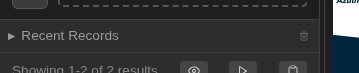
Sidebar
The sidebar (left panel) provides navigation, search, entity browsing, and quick access to your media collection. It can be collapsed to give more space to the main content area.
Navigation
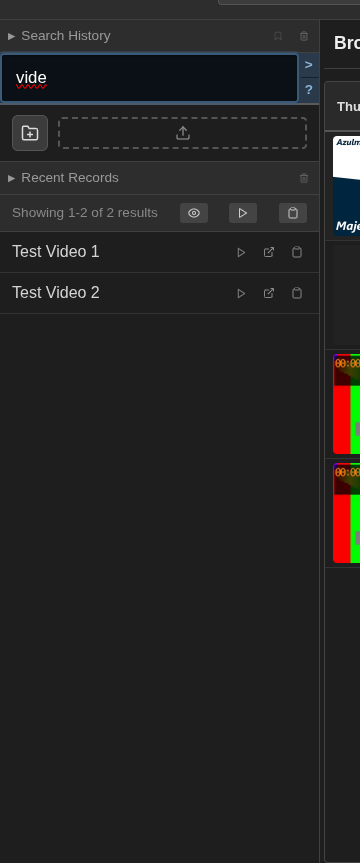
The top of the sidebar contains navigation items for switching between views:
- Browse — Open the main table view of entities
- Search — Focus the search input
- Play — Start playback from the current context
- Clipboard — Open the floating clipboard panel

Search
The search section lets you find entities using tags, attributes, and path/filename queries.
Search Input
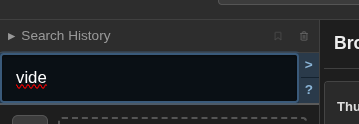
Type queries using tag names, categories, attribute filters, and special prefixes:
rock & metal— entities with both tags-pop— exclude pop tag/genre/*— category wildcard@name:eq:value— attribute filter~path/to/files— path/filename search (prefix with~)
Search Autocomplete
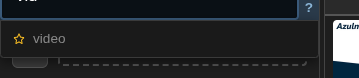
As you type, matching saved searches and recent queries appear in a dropdown:
- Saved searches are marked with a star icon
- History items are marked with a clock icon
- Press Enter to search, Tab to fill with the first suggestion
Search History
Expand the collapsible search history section to see previous searches. Click any item to repeat that search.
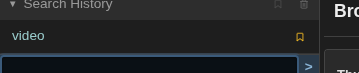
Saved Searches
Toggle between history and saved searches using the bookmark icon. Save searches for quick access to frequently used queries.
- Click the star icon on any history item to save it
- Saved searches show both the name and original query
- Click the trash icon to clear all history
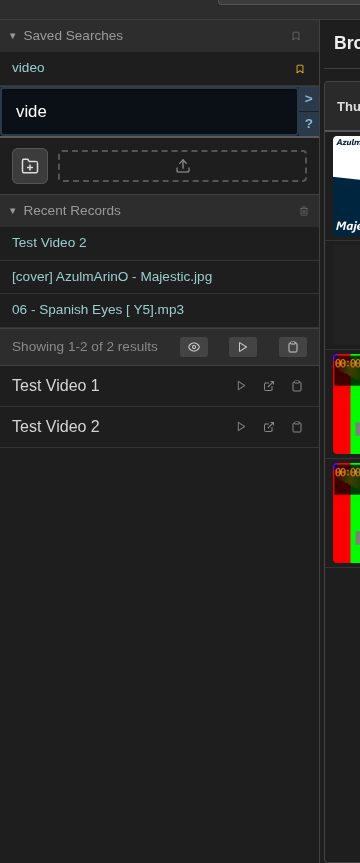

Entity List
Below the search section, results and browsed entities appear in a scrollable list.
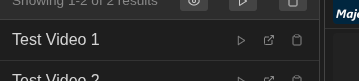
Entity Items
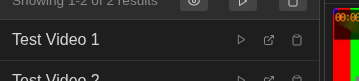
Each entity in the list shows basic info. Hover to reveal action buttons:
- Play — start playback from this entity
- Open — navigate to the entity detail page
- Clip — copy the entity to the clipboard
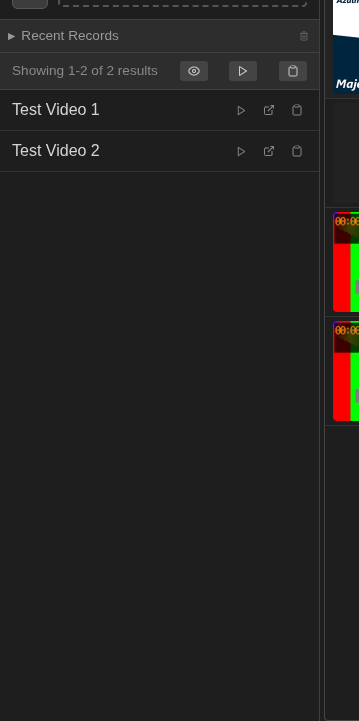
Bulk Actions
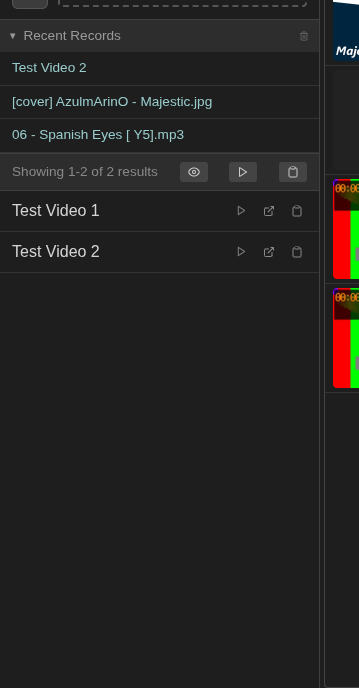
At the top of the entity list:
- Play All — play all entities in the current list
- Clip All — copy all entities to clipboard
- Show in Browse — open results in the browse view


Recent Records
When no search is active, the list shows recently viewed or added entities.
Adding Entities
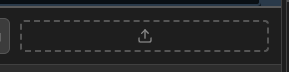
Drag files directly into the entity adder area, or click the button to open a file picker.

Resizing
Drag the resizable divider between the sidebar and main content to adjust the width.

Collapsing
Collapse the sidebar to give more space to the main content area. When collapsed, a show button appears at the left edge of the main content.
Collapse/expand by:
- Clicking the edge zone of the sidebar
- Using the toggle button when collapsed
Collapsed state persists across sessions.
Clipboard Section
The sidebar includes a collapsible clipboard section for quick access to copied entities.