Browse Page
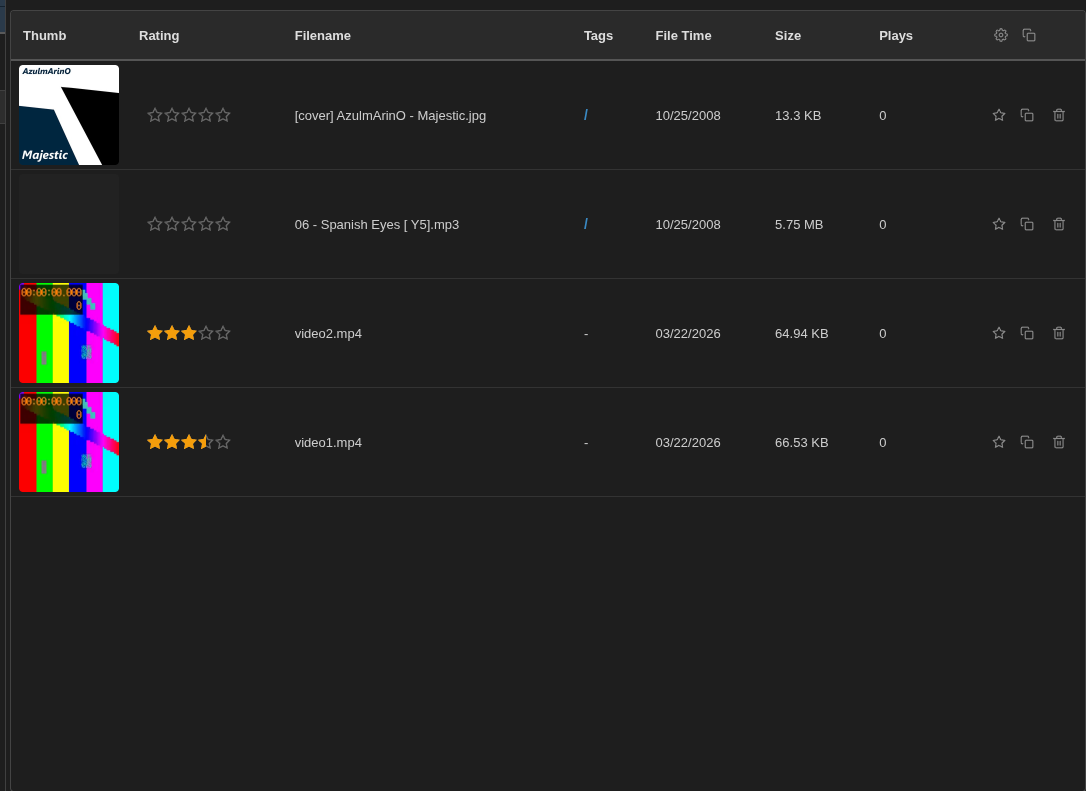
The Browse page displays entities in a sortable, paginated table with thumbnails, ratings, tags, and action buttons. It is the primary view for exploring and managing your media library.
Overview
The Browse page: - Displays all entities in the selected database as a table - Supports sorting by any column (ascending/descending) - Paginated display with configurable page size (10-1000 rows) - Column visibility and width customization - Full-text search that filters the table
Columns
The table includes these standard columns:
| Column | Description |
|---|---|
| Thumb | 100x100px thumbnail preview (configurable size) |
| ID | Entity ID number |
| Name | Display name |
| Filename | Original filename |
| Path | File path |
| File Time | Last modified date |
| Created | Creation date |
| Updated | Last update date |
| Size | File size |
| Tags | Tag chips |
| Plays | Play count |

Custom Attribute Columns
Additional columns can be added based on attribute templates. These appear with att: prefix in configuration.
Column Visibility
Click the column selector button in the header to show/hide columns. Your column configuration is saved per-database.
Entity Rows
Each row represents an entity. Hover over a row to reveal action buttons.


Row Actions
On hover, each row reveals action buttons in the Actions column:
Play Button
Title: "Play in playlist"
Adds the entity to the playlist and starts playback.
Favorite Button

Title: "Add to favorites"
Toggles the entity's favorite status. Favorited rows show a highlighted background.
Copy Button

Title: "Add to clipboard" / "Remove from clipboard"
Adds or removes the entity from the clipboard for bulk operations.
Delete Button

Title: "Delete entity (click to confirm, shift+click to skip confirm, shift+ctrl+click to delete file)"
Deletes the entity. Supports three modes: - Click - Shows confirmation dialog - Shift+click - Deletes without confirmation - Shift+Ctrl+click - Deletes entity AND the physical file
Table Cells
Thumbnail Cell
Shows a 100x100px thumbnail of the media. Displays a placeholder if no thumbnail is available.
Rating Cell
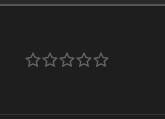
Star rating display (0-5 stars with half-star support). Click to rate.
Tags Cell

Displays styled tag chips. Click a tag to search for all entities with that tag.
Filename Cell
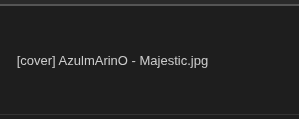
Shows the filename with truncation for long names. Hover for full path tooltip.
Action Cell

Contains row action buttons (play, favorite, copy, delete). Only visible on hover.
Page Actions
Play All Button

Plays all files in the current browse view in the inline player.
Copy All
Copies all entity IDs on the current page to clipboard. Available in the header dropdown.
Clear All
Deletes all entities from the database. Requires confirmation.
Sorting
Click any column header to sort by that column. Click again to toggle ascending/descending order.
Pagination
When there are more entities than the page size, pagination controls appear at the bottom:
- Page number buttons
- Previous/Next page buttons
- Page size selector (10-1000)
Keyboard Navigation
When the browse view is focused:
| Key | Action |
|---|---|
↑ / ↓ |
Navigate rows |
PageUp / PageDown |
Page-sized jumps |
Home / End |
First/last row |
Tab |
Next row |
Shift+Tab |
Focus search input |
Enter |
Open entity |
[ / ] |
Previous/next page |
r |
Focus rating |
Alt+P |
Play in playlist |
Ctrl+O |
Open file in system |
Search Integration
The Browse page works with the search bar. Use the search bar to filter entities, then browse through results with keyboard navigation.
State Persistence
The browse page saves your browsing state: - Current page and offset - Sort column and order - Scroll position - Focused row
This state is restored when you return to the browse view.
Right-Click Context Menu
Right-clicking a row opens a context menu with: - Open entity (navigate to entity page) - Copy to clipboard - Open file (system default app) - Delete
Component Reference
See Browse Page Components for detailed component screenshots and selectors.